The short answer
To start a coding agent task from your phone, something on your computer has to launch the agent for you and send the conversation, approvals and results back. BotBus is an always-on app on your computer that does exactly that. On your iPhone you pick a computer, an agent and a project, type what you want, and tap "Start Chat". A new Claude Code or Codex session starts on your Mac, and you can follow its progress, answer its approval requests and read its replies from your phone. The catch: that computer has to be on and online, and the agent has to support starting tasks from the phone.
Why starting a task is harder than watching one
Watching progress is mostly a sync problem: the computer publishes its task list and the phone displays it. Starting a task means actually running something on your machine, which raises a few questions:
- Where does it run? Your phone can't browse your file system, so the computer has to report which projects exist.
- Which agent, which model? Claude Code and Codex start in completely different ways.
- Who approves things? When the agent wants to run a shell command or edit a file, you are not at the keyboard. Approvals have to reach your phone.
- How do you see the output? Screenshots and files the agent produces need a way back to you.
BotBus puts that work on the computer side. It already watches your local agents, so it knows which ones are installed and which projects you've been working in. The phone only has to say where, with whom, and what.
Step by step
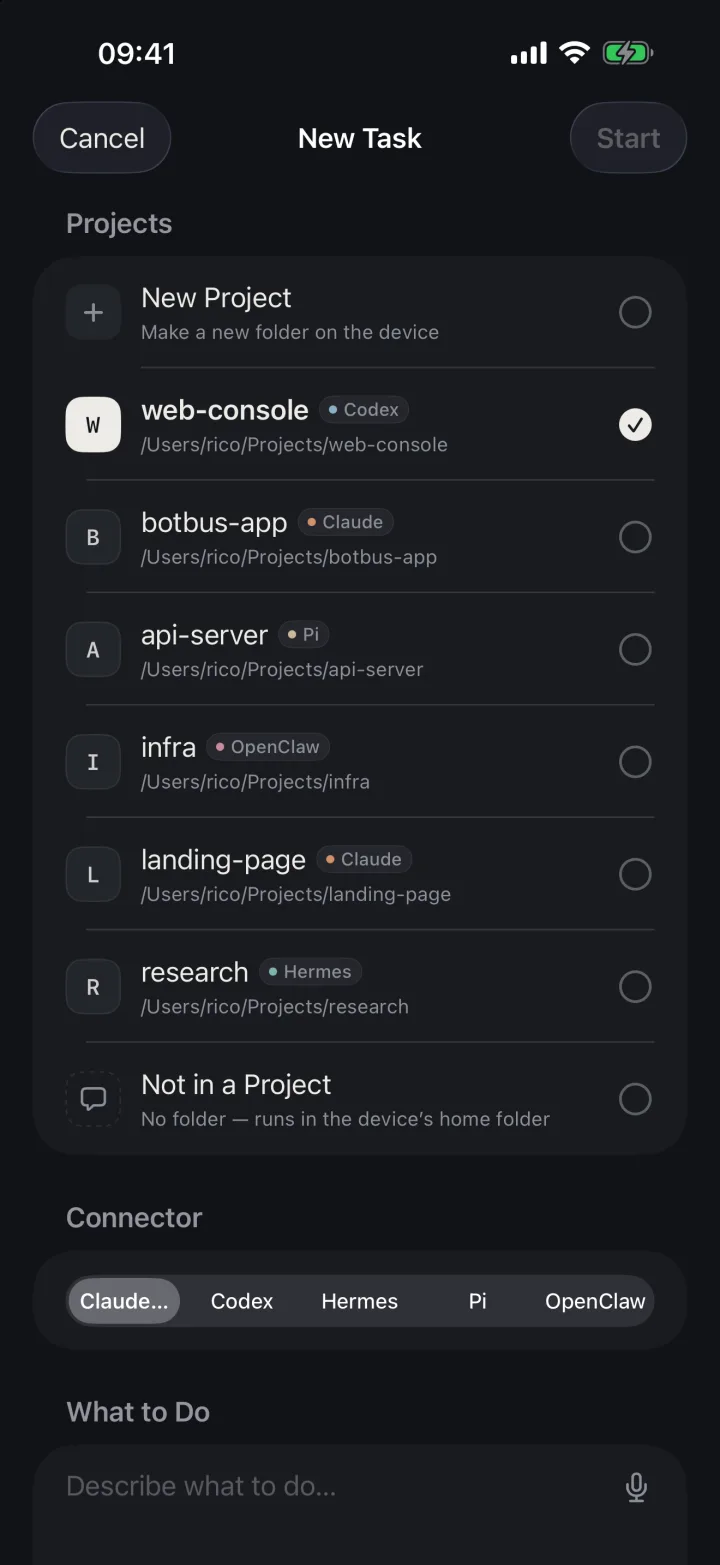
- Open a new chat. The computer screen has a "New Chat" button in the bottom-right corner. Each recent project has a "+" next to its title to start right inside it. If you've paired two or more computers, the home screen also offers "Quick Chat" with a computer switcher at the top.
- Pick the agent. A row of agents sits at the top, such as Claude Code and Codex. It defaults to the one you were looking at.
- Write the prompt. Describe the change. Codex and Claude Code also accept images, like a mockup or a screenshot of an error. There's a microphone button for dictation when typing on a phone is a pain.
- Pick the project. Choose an existing project on that computer, "Not in a Project", or "New Project". The last one only appears if the computer has a folder configured for new projects; you type a folder name and the agent starts inside the newly created folder.
- Optionally pick a model and approval mode. For agents that report their models, a "Model · Effort" button sits at the bottom-right of the prompt box. It starts at the agent's own default. When a project is selected, the panel also has an approval setting: confirm each request, or turn on auto-approve for that project.
- Tap "Start Chat". The screen turns into the conversation and you can watch the agent get going.
If sending fails, for example because the computer just went offline, the app tells you why. Go back and your text, images and project choice are all still there.
Run it in a git worktree
When you start a task in an existing project, "Run in a worktree" is on by default. The Mac creates a git worktree and a new branch whose name starts with botbus/, and the agent works there. Two benefits:
- Uncommitted changes on your computer are left alone. The agent neither touches them nor picks them up.
- Several tasks in the same repository won't trample each other's files.
When the agent is done, the "Session Changes" view on your phone shows the whole worktree diff since it branched off. At the bottom there's a button to merge into the original branch and end the session. It squashes the session into one commit, lands it on the branch that was checked out when the worktree was created, then removes the worktree. If there's a conflict, the session is still running, or git is older than 2.38, the merge fails with a reason and nothing is deleted.
The toggle isn't offered for folders that aren't git repositories, repos with no commits, new projects or "Not in a Project". OpenClaw doesn't offer it either.
After it starts
For tasks started from the phone, BotBus tells the agent that you're away from the computer and gives it tools to share screenshots, files, links and previews back to your phone. So what the agent produces can be opened right there.
When Claude Code or Codex wants to run a command or edit a file during that turn, the request comes to your phone to allow or deny. Multiple-choice questions show up as options you can tap. Once the turn ends, you can send a follow-up in the same conversation, or interrupt it while it runs.
Back at your desk, BotBus's menu bar lists the sessions started from the phone for each agent. "Resume" opens Terminal and resumes the session with the agent's own command, such as claude --resume or codex resume. It's disabled while a turn is running or waiting on your phone, so two processes never write to the same session at once.
Limits and caveats
- The computer must be online. Viewing synced tasks works without it, but starting, following up, approving and interrupting all need the target computer awake and connected. A sleeping laptop won't receive commands.
- Agents differ. Image attachments work with Codex and Claude Code only. Pi has no approvals, and the mode BotBus uses for Hermes has no approval channel, so you won't see approval cards from them. An agent that isn't fully installed on the computer can be watched but not used to start tasks.
- Use auto-approve carefully. It applies per project and only to turns started from the phone. Questions still come to you. Think about what the agent can reach in that project before turning it on.
- Some prompts only appear on the computer. macOS folder access dialogs and commit-signing prompts (passwords, hardware keys) can't be answered from the phone.
- Content is encrypted, metadata isn't. Tasks, conversations and commands are encrypted on your devices before passing through the relay server, which only sees ciphertext. It still sees device IDs, online status, update times and data sizes. Developer previews are not end-to-end encrypted. See the end-to-end encryption details.
Can you use it today?
On the computer side there's a Mac app (a menu bar app, macOS 26 or later) and a Linux version (a command-line program for x86_64 and aarch64; see the install guide), both available from the download section. The iPhone and Apple Watch app is available on the App Store. Windows and Android versions are planned. If approvals are your main concern, read how to approve Claude Code from your phone. Using both agents? See managing Codex and Claude Code together.
FAQ
How is a phone-started task different from one I start in the terminal?
It's a regular agent session on your computer, running in the folder you picked with the agent and configuration installed there. The differences: BotBus tells the agent you're away and gives it tools to share files back to your phone, and approvals go to your phone.
Can I start a task from Apple Watch?
Yes. The watch has its own new task screen and you can dictate the prompt; each dictation is appended to what's already there. Longer prompts are still easier to write on the phone.
Can my phone see every folder on my computer?
No. You choose from the projects your computer reports, which are projects your agents have used, plus "Not in a Project" and the configured new-project folder. The phone doesn't browse your disk.
Does it use my agent subscription?
Yes, the same as using the agent at your desk. BotBus launches the agent on your computer with your own account; it doesn't proxy model requests.
What if the worktree merge fails?
Nothing gets deleted, and the app shows the reason, such as a conflict or a session that's still running. Ask the agent to resolve it and merge again, or handle it with git on your computer.