 Codex
Codex Claude Code
 Hermes
 Pi
Pi OpenClaw
 DeepSeek Harness
macOSAvailable now
macOS 26 or later, universal for Apple Silicon (arm64) and Intel (x86_64).
Release info
BotBus for Mac 1.0.5 (build 32) is now available to download.
Check on Codex and Claude Code tasks from your phone and watch,
approve, follow up, and start new work on the go.
01Features
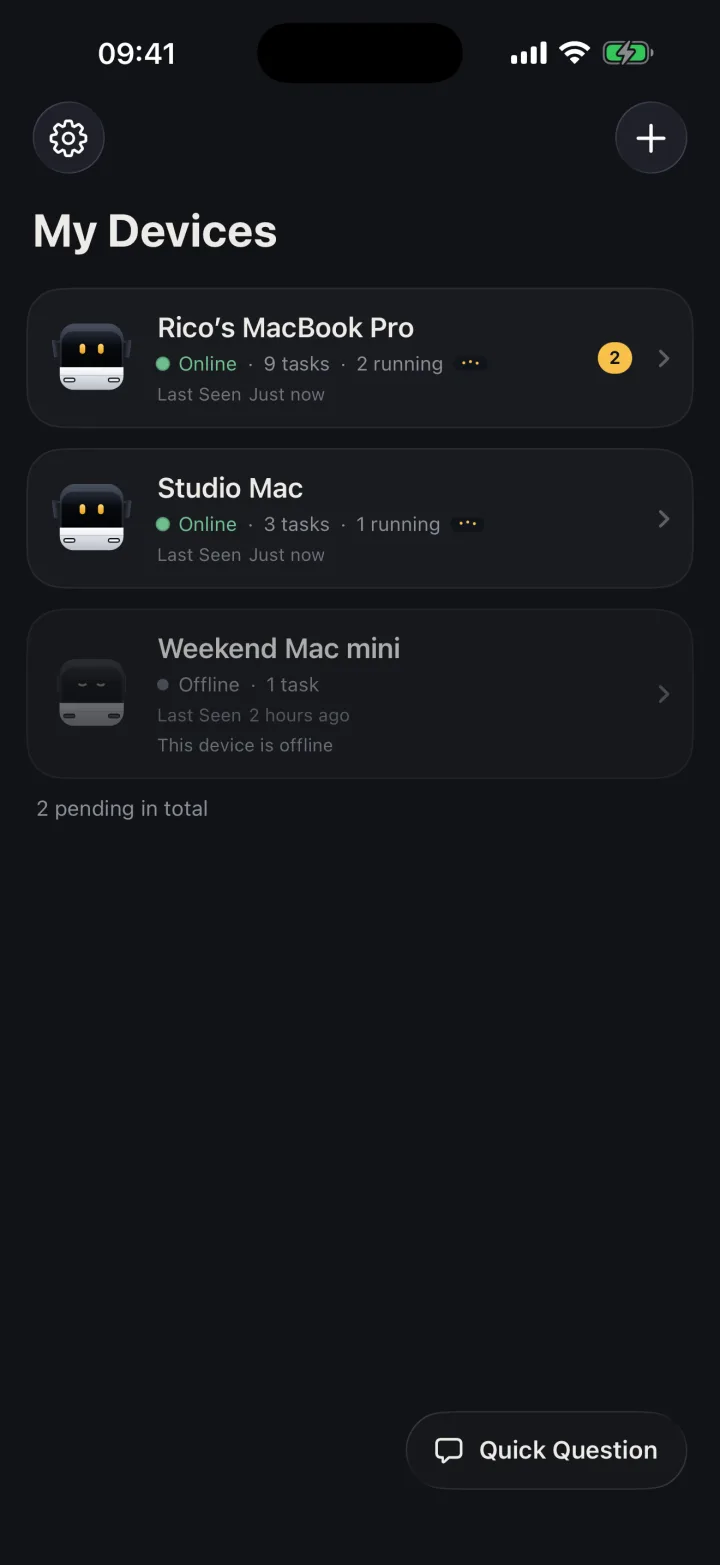
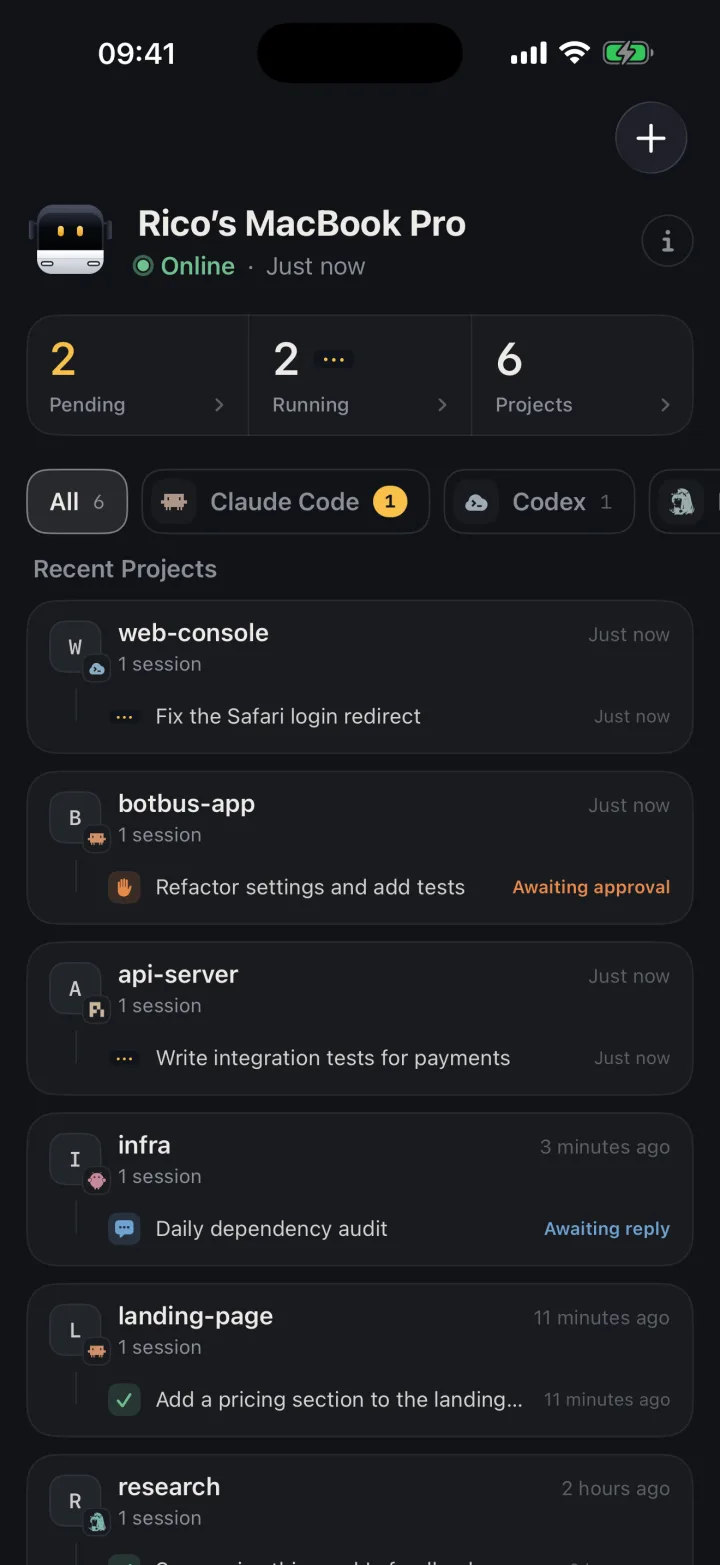
Tasks from all your computers, sorted by agent and project — including ones you started at the desk.
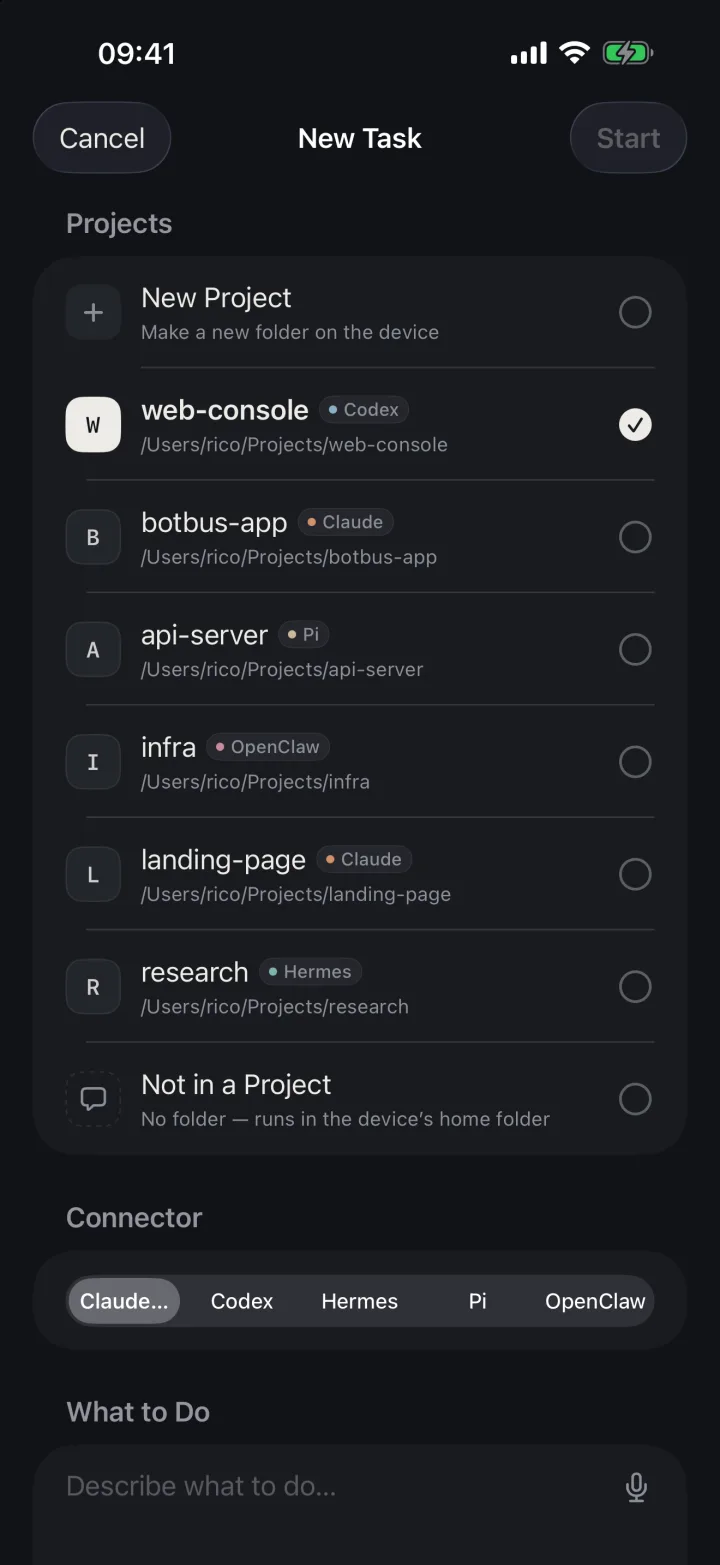
Pick a computer, project and agent, say one sentence and it starts; choose the model, or run it in its own git worktree.
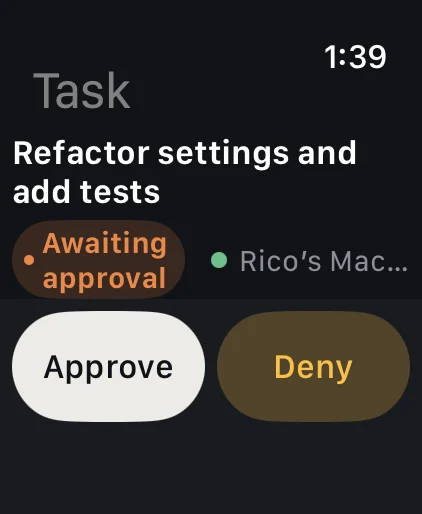
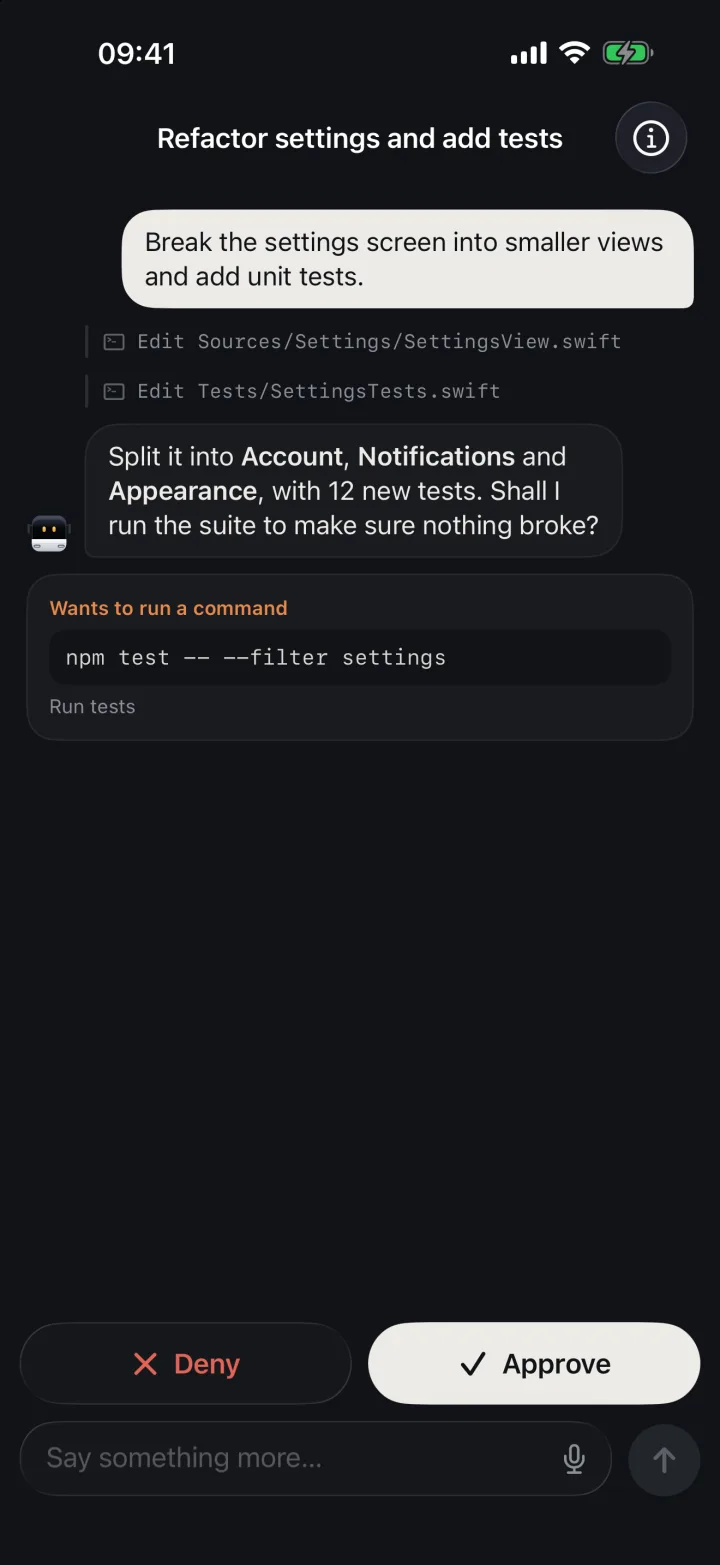
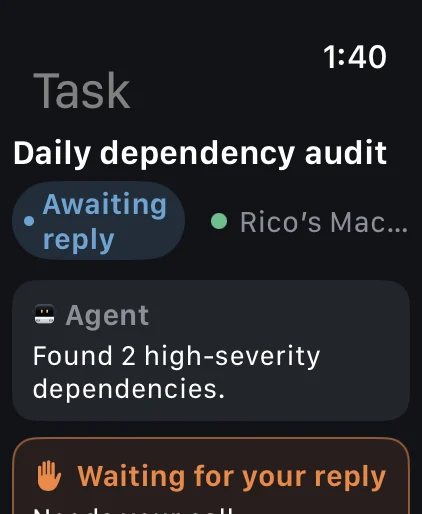
Get a nudge when an agent wants to run a command, edit files or ask you something, and answer with a tap on your phone or watch; or turn on auto-approve for a project.
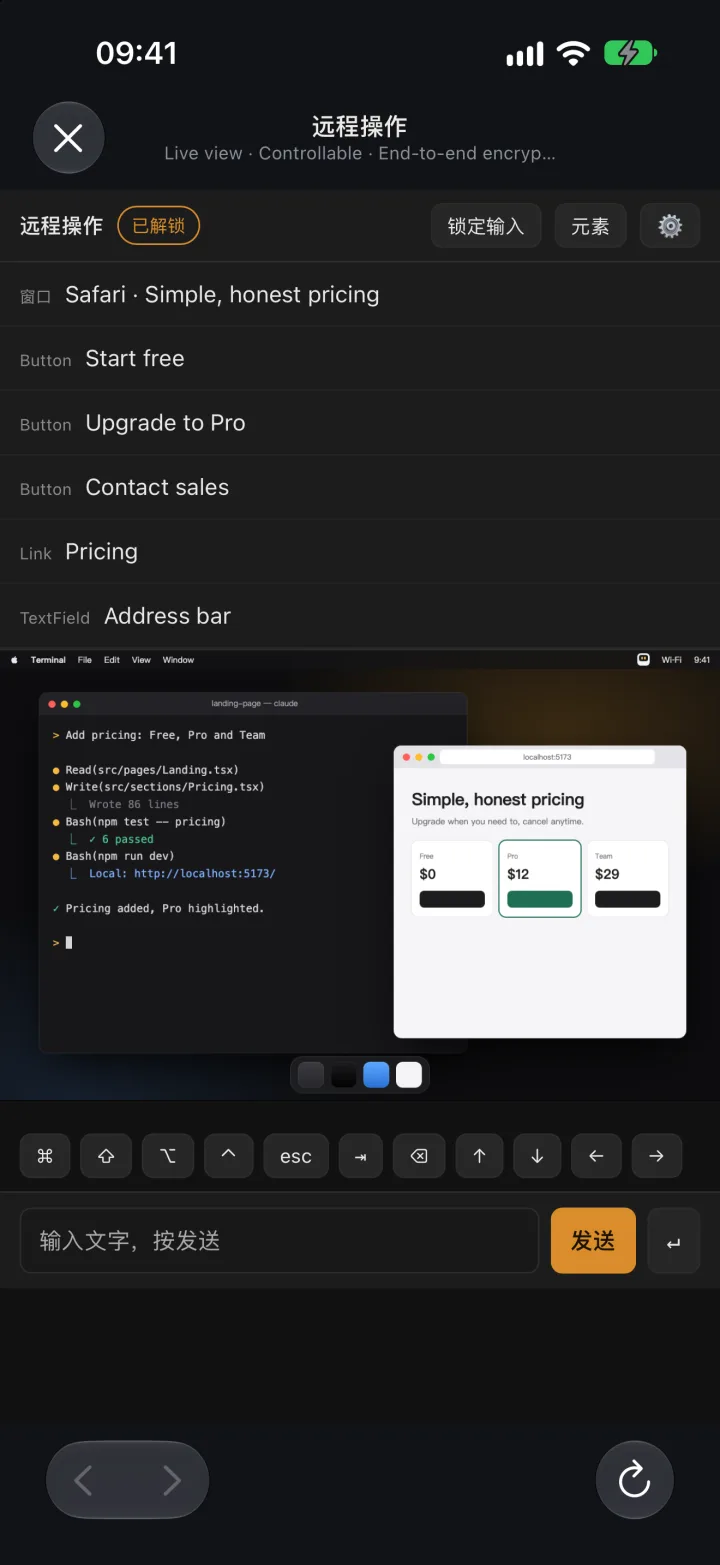
See your computer’s screen live on your phone and tap, swipe or type; input starts locked, and the picture and your input are end-to-end encrypted.
Screenshots, files and videos come back with the task; images and PDFs mentioned in the chat open with a tap.
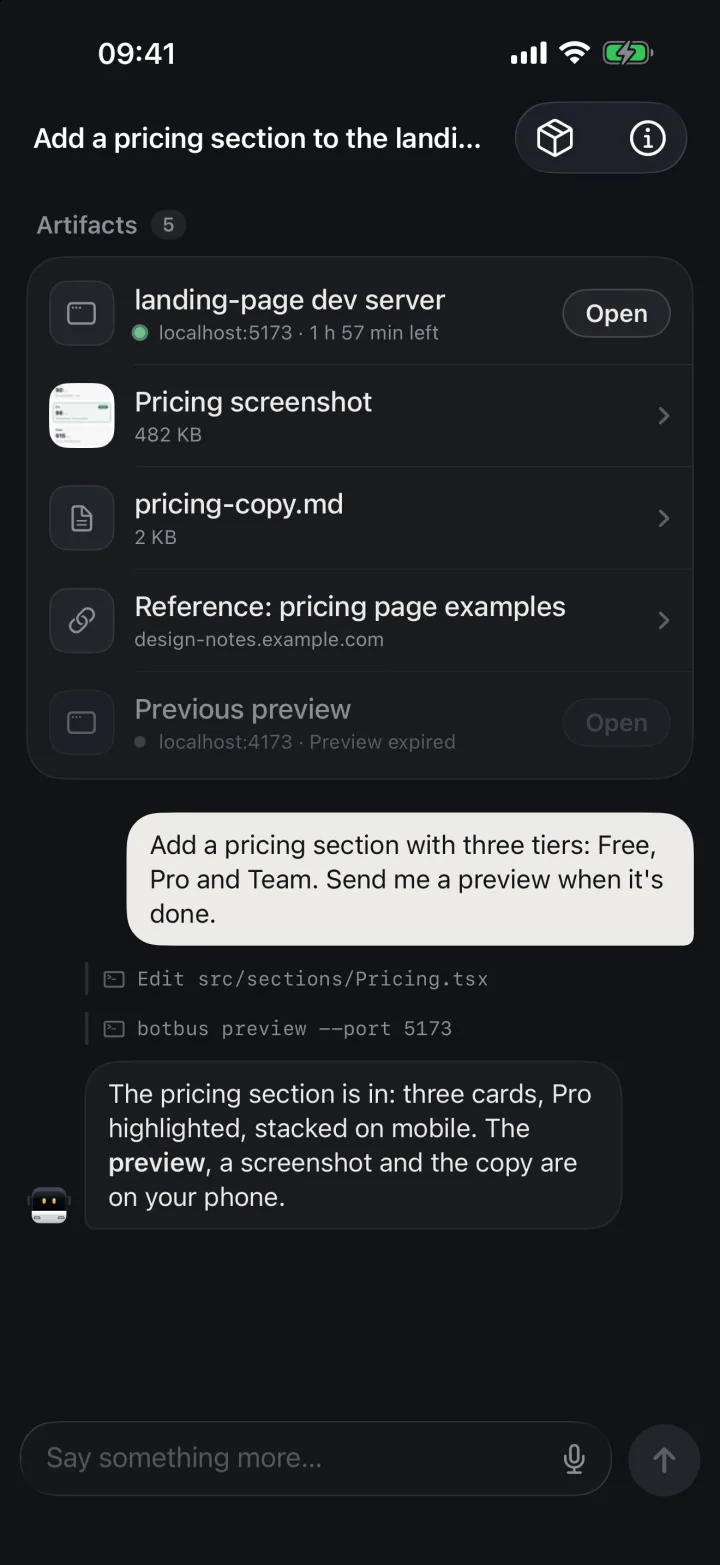
Preview the dev server your agent started, without going back to your computer.
What you can do depends on the connector, the task’s state and whether the computer is online; screen control currently supports Mac.
02Apple Watch
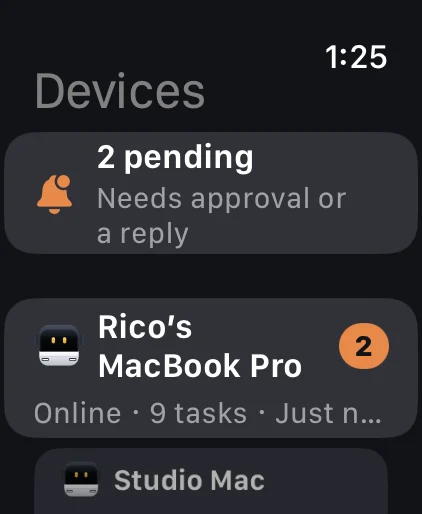
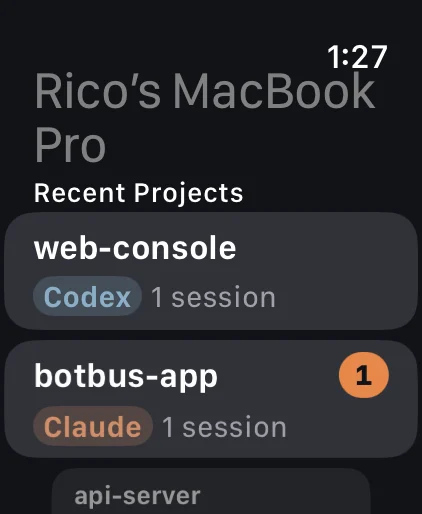
Once your watch syncs pairing from your phone, it connects on its own — common actions don’t require pulling out your phone.
03Data & Security
Chats, tasks and screenshots are encrypted on your device before they leave. Only your devices can read them.
Content is encrypted with AES-256 on your device before it’s sent; the server only relays and briefly holds ciphertext, and pairings idle for 30 days are cleared.
Pair by scanning the QR code on your computer. The key never goes through the server and stays in each device’s keychain; remove any single computer or phone and it’s disconnected at once.
The server still sees the little it needs to relay data: device IDs, online status, update times, and data sizes. Developer previews (sharing a web page from your computer to your phone) are proxied through the server and aren’t end-to-end encrypted.
04Get Started
Lives in your menu bar and automatically discovers agents on your computer.
Choose “Pair a Phone” from the BotBus menu.
Runs in the background and finds local agents automatically.
macOS 26 or later, universal for Apple Silicon (arm64) and Intel (x86_64).
BotBus for Mac 1.0.5 (build 32) is now available to download.
Mainstream x86_64 and aarch64 distros, with or without systemd.
curl -fsSL https://botbus.io/install.sh | shNo sudo needed; scan the QR code in your terminal to pair.
Windows 10 / 11. Runs in the background after you sign in, with a tray icon. ARM PCs need Windows 11.
irm https://botbus.io/install.ps1 | iexRun it in PowerShell, no administrator rights needed; scan the QR code to pair.
Will be available here once released.
Check tasks, approve and follow up from your phone and watch.
iPhone and Apple Watch, iOS 26 / watchOS 26 or later. The watch app comes with the iPhone app.
Android 8.0 or later. After downloading, open the file on your phone and allow your browser to install apps when prompted.
Android 8.0 or later, currently in internal testing only.
05FAQ
BotBus is an app for keeping tabs on the AI coding agents on your computer from your phone and watch. On the computer it lives in the menu bar and automatically discovers local agents like Codex and Claude Code; on your phone and watch you can follow task progress, approve, follow up, interrupt, and start new tasks.
Codex, Claude Code, Hermes, Pi, OpenClaw, and DeepSeek Harness are built in. Starting with the Mac app 1.1, other agents that implement ACP (Agent Client Protocol) can connect too; see the developer docs.
Desktop: macOS 26 or later, Linux (x86_64 and aarch64 — see the install guide), and Windows 10 / 11 (ARM PCs need Windows 11 — see the install guide).
Desktop: macOS 26 or later, and Linux (x86_64 and aarch64 — see the install guide). Windows is in development.
Mobile: the iPhone and Apple Watch app is on the App Store and requires iOS 26 / watchOS 26 or later; Android requires Android 8.0 or later and can be downloaded directly from the download section.
Mobile: the iPhone and Apple Watch app is on the App Store and requires iOS 26 / watchOS 26 or later; Android is in internal testing and requires Android 8.0 or later.
Viewing already-synced tasks doesn’t; approving, following up, starting new tasks, and interrupting require the target computer to be online and supported by the connector.
No. Your content is encrypted on your devices, and the key exists only in your computer’s pairing QR code. It never passes through the server. The server only relays and temporarily holds ciphertext, and we can’t decrypt it.
Yes. Multiple computers and multiple phones can pair with each other, and tasks are listed separately by device and project.
Control depends on the connector, the task’s state, and whether your computer is online. Some tasks are view-only.
The app checks for new versions. This page also lists each version’s size and SHA-256, so you can verify them after downloading.